Archive for the ‘Software’ Category

Adding Files to Your Posts and Pages with LiveWriter

Thursday, October 16th, 2008

Adding a file to your posts and pages with LiveWriter is rather simple after you add a “Plug-in” to LiveWriter. Here are the instructions for adding the plugin and adding files after you properly install the plugin.

Installing the Plugin to Add Files

Click on the “Add a Plug-in…” icon on the bottom right of your screen.
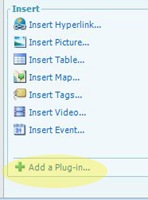
plugin-link-no-add-file

After clicking on the icon, you will be taken to a web page. Scroll down the page to find the plugin called “Insert File(s).” Click “download”
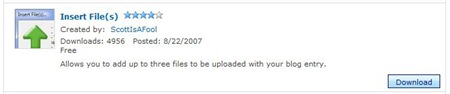
insert-file-plugin

Follow the instructions to install.

After installing, you should close LiveWriter and open.

After opening LiveWriter, Maximize the LiveWriter window.

You will see the new icon called “Insert File(s)…”
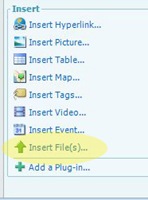
plugin-link-with-add-file

Using the Plugin to Add Files

Click the “Insert File(s)…” link and a dialogue box will open.
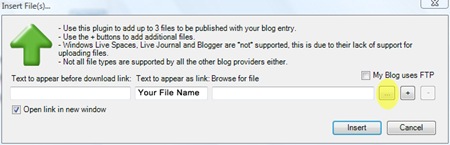
how-to-insert-a-file

Click the “…” to navigate to the file on your harddrive.

Add text in the “Text to appear as link:” field.

Hit “Insert” and you are finished.

Well…I did everything and my file did not upload :(

The issue may be related to how your blog was set up. If the file did not upload, do this:

1) Select the “My Blog uses FTP” as well.

2) If that does not work, contact your webmaster and ask for instructions on how to configure the FTP settings.

Roboform: Password Manager

Wednesday, September 17th, 2008

robo-form-logo Passwords, usernames, Aargh! Like most people, over the years I used one username and one password for everything. Now, that is impossible. Some sites want a capital letter, number and a symbol in the password. The password must be between 6-12 characters… so on and so forth! It is a nightmare!

I manage over 100 websites. For each site, I may have two different login identities. That is a ton of usernames and passwords! I tried RoboForm and found this tool to be invaluable! It is a critical tool I use multiple times daily. Here’s the goods…

  1. When I installed Roboform, it automatically gathered all of the usernames and passwords stored in my browsers. I forgot I had created identities on certain sites! In fact, Roboform reminded me of some great sites!
  2. With Roboform, all you simply do is click on a favorites-styled toolbar, navigate to your favorite and click. Roboform automatically takes you to the webpage, enters your login information and submits within a second or two! This saves time!!!
  3. Are you still living in 1997 and want a printed list of all your logins? Roboform has a one-click function that prints an alphabetically organized list of your passwords.
  4. “What if someone steals my laptop?!” God forbid. It happens. Roboform has a feature that asks for your overall password so no one can access your information.

The cost for Roboform is negligible when it comes to a software tool. It costs only $29.95. It comes with free lifetime updates!

To get a free, fully-working trial of Roboform, click the banner below.


RoboForm: Learn more...

Why I Am Sure I Will Eventually Love Google Chrome

Friday, September 5th, 2008

google-chrome This week (September 2, 2008), Google released Google Chrome. It is a new browser that will compete with Internet Explorer, FireFox and Safari. Here is a quick overview of what I think about Chrome.
  • As a website developer, I have to use Chrome to see if websites look and function the same.
  • As an internet surfer, I love to use Chrome from the standpoint of its speed and clean interface.
  • As a search engine professional, I cannot use Chrome. It is brand new (of this posting) and still lacks some valuable plug-ins and tools. I am sure that many will adapt FireFox’s plugins to adapt with Chrome.

Click Here to Get Google Chrome

Why I already love Chrome.

  • Speed: Even with a 5mb broadband connection, the loading speed of webpages is significantly faster than Internet Explorer and FireFox. In fact, it is blazingly fast! I tried to install Safari on two of my PCs, but I cannot get it to run, so I cannot compare the speed with Safari.
  • Forms: The boxes on forms are highlighted in a yellow/orange that makes it easy to see where I am at when completing forms.
  • Spell Checking: While Chrome highlights misspelled words (unlike IE), it does not give suggestions.
  • Tabbing: IE7 and FireFox have great tabbing systems which allow you to open multiple windows. Chrome improves on this and allows you to drag an open tab down to have it as its own stand alone window. This will come in handy when you have to view two different sites at the same time. You don’t have to open Chrome again. Just click and drag a tab.
  • Browser Crashing: If your browser crashes, Chrome keeps in memory your last open pages when you restart.
  • Hyperlinks: When you hover over a hyperlink, a cool status bar fades in on the bottom of your browser showing you exactly where the link is taking you. This fades in and out when you hover. This is an improvement over FireFox.
  • Find: This is also an improvement. The field requires far less mouse movement. The find field shows up in the upper right corner of your screen (not the bottom left as in FireFox). The find feature also shows how many times the query appears on the page and on which particular instance you are on currently. When I search in FireFox, I find myself hitting “next” and not realizing right away that I already found that particular instance.
  • Memory Management: Do you notice your browser getting sluggish? Perhaps you have opened a window that requires too many resources. You can simply “right click” over a tab and see the task manager.
  • Generous Font Size in URL: I like the larger pixel size in the browser field.

Why it will take me some time to really love Chrome

  • Tools and Plugins: As noted above, since Chrome is so new, the currrent tools and plugins I use with FireFox are not available in Chrome.
  • Spell Checking: As noted above, does not give the corrections, it only shows misspellings.
  • Importing Bookmarks: I imported my bookmarks from FireFox during the installation of Chrome. They did not transfer over :(
  • Multiple Search Engines: IE7 and FireFox have multiple search engines quickly accessible in field on the upper right hand of their browser. Chrome only allows you to set up one search engine at a time.
  • NO RSS FEED INDICATOR: Now, come on Google! Get it together! Where is it? How can I tell if a website has a RSS feed? This is probably the most notorious blunder of all.

Below is a video on Google Chrome

LiveWriter: Even Mac users don’t have it this good!

Tuesday, July 8th, 2008

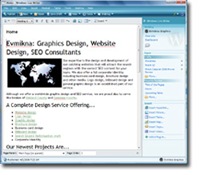
blog-livewriter-interfaceSo, you own a PC, a generic computer saving you hundreds of dollars over the Apple Macintosh. This post is not about bashing Macs, I like them, but it is about demonstrating a new development in the world of website editing that makes my life a whole lot easier (and of some of my clients).

Until early this year, I have hand-coded websites and used DreamWeaver entirely to build my sites. When my clients wanted to edit their own sites, I would set them up with a $150 companion program to DreamWeaver. This is no longer necessary. A product just came out of Beta and it is a perfect tool for editing websites (provided they are based on WordPress, SharePoint or other blogging/cms platforms). The product is called Live Writer. This post is intended to give the location for downloading the software and an overview of its abilities.

Get LiveWriter by clicking here.

Overview of the Software:

  1. It is free.
  2. It is WYSYWYG (What you see is what you get)
  3. LiveWriter enables you to publish/edit Web Pages. You are able to insert Pictures, hyperlinks, tables and maps with ease. Also, you can arrange your pages so that they appear correctly in your menu system. Mac users have a program called MarsEdit. It does not allow you to publish/edit pages.
  4. LiveWriter enables you to publish/edit blog entries. You have all of the same features you do for creating pages. You can create categories “on-the-fly.”
  5. If you use MicrosoftWord, you can copy and paste your material into LiveWriter and it will clean up the code. It preserves and hyperlinks footnotes.

Instructional Video to Install LiveWriter


Basic Authoring with LiveWriter

Oakland County Cities and Towns Which We Service Locally: Addison, Auburn Hills, Berkley, Beverly Hills, Bingham Farms, Birmingham, Bloomfield Hills, Brandon, Clarkston, Clawson, Commerce Township, Davisburg, Farmington Hills, Farmington, Fenton, Ferndale, Franklin, Groveland, Hazel Park, Highland, Holly, Huntington Woods, Independence, Keego Harbor, Lake Angelus, Lake Orion, Lathrup Village, Leonard, Lyon, Madison Heights, Milford, Northville, Novi, Oak Park, Oakland, Orchard Lake, Orion, Ortonville, Oxford, Pleasant Ridge, Pontiac, Rochester Hills, Rochester, Rose, Royal Oak, Royal Oak, South Lyon, Southfield, Springfield, Sylvan Lake, Troy, Walled Lake, Waterford, West Bloomfield, White Lake, Wixom, Wolverine Lake

Genesee County Cities and Towns Which We Service Locally: Argentine, Atlas, Burton, Clayton, Clio, Davison, Fenton, Flint, Flushing, Forest, Gaines, Genesee, Goodrich, Grand Blanc, Linden, Montrose, Mt. Morris, Mundy, Otisville, Richfield, Swartz Creek, Thetford, Vienna